Requirements
You must have an active license for either Rhvac 10, Chvac 8 or Ductsize 6. If you use a version of Drawing Board in Rhvac before version 2, you will need to upgrade to Drawing Board for Rhvac version 2 in order to use Drawing Board in Rhvac 10.
Overview
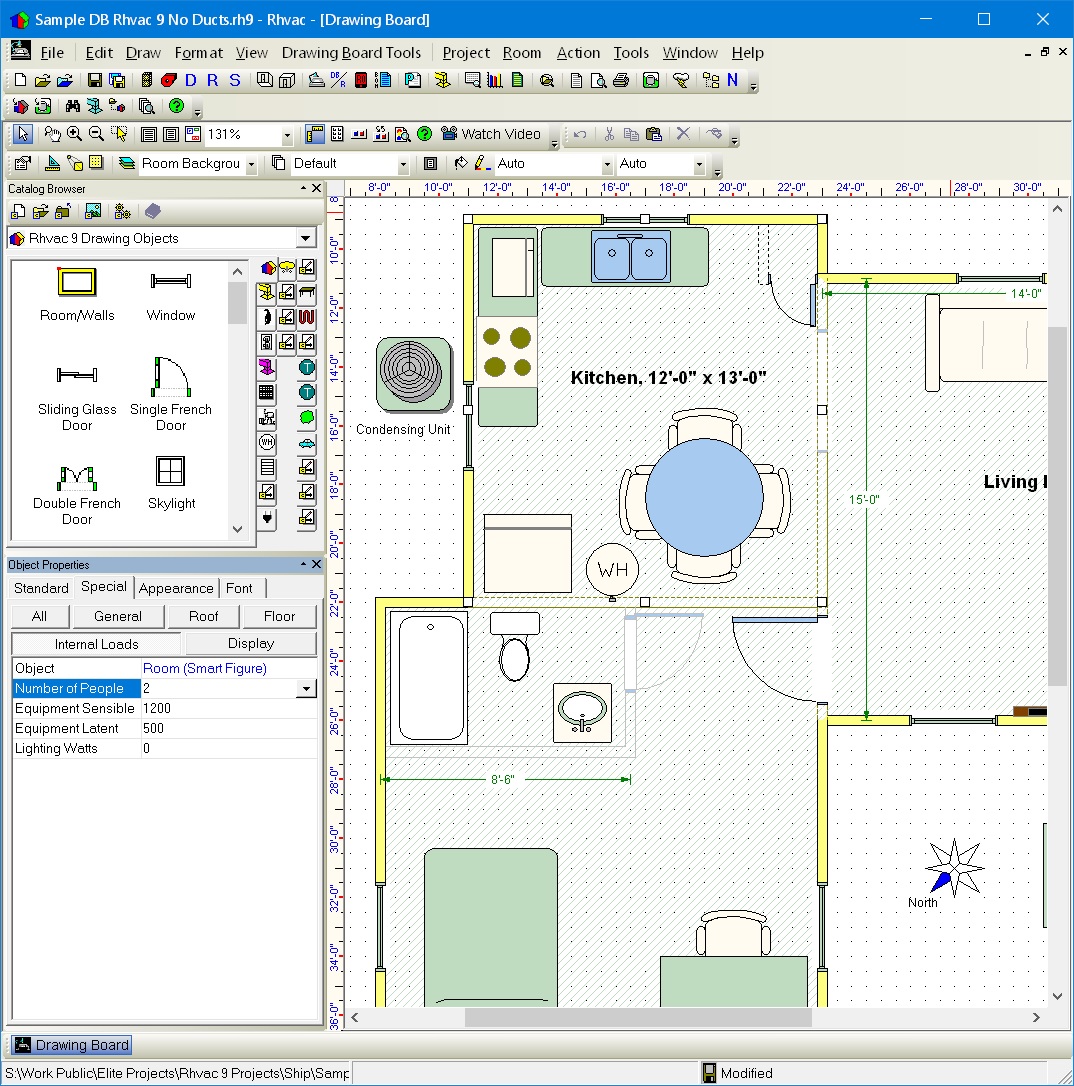
Drawing Board is a fast and simple program for drawing floor plans, ductwork, and any other items desired. Drawings can be quickly created by dragging and dropping drawing objects from the built-in object catalogs onto the drawing window. The drawing objects in Drawing Board are pre-programmed shapes such as entire room shapes, walls, doors, windows, and ductwork. To help make drawings more realistic, many other object catalogs are included to cover items like electrical, plumbing, furniture, and HVAC equipment. Many of the objects are intelligent in that they contain data useful for calculations in the Elite Software Chvac, Rhvac and Ductsize programs. A special feature of Drawing Board when used with Rhvac is that it can convert manual entry projects automatically into drawing based projects. See more about that here.
Drawing Board can be used for both residential and commercial projects. Drawing Board works as an integrated component within the Elite Software programs Rhvac, Chvac, and Ductsize.
A common use of Drawing Board is to create floor plans so that HVAC load calculations can be automatically performed from the floor plan. Ductwork can be drawn and manually sized if so desired or ducts can be automatically sized within Drawing Board by using the optional Graphic Manual D Ductsize software or the ASHRAE based Ductsize software. Additionally, Drawing Board for Rhvac can also use the optional Bill of Materials software to calculate material and labor costs.
Unlike other HVAC drawing systems, Drawing Board can do much more than just drawing floor plans and ductwork. Drawing Board provides general CAD (computer aided drafting) features such as the ability to draw lines, circles, rectangles, ellipses, arcs, curves, polygons, text and dimension lines. These are the features you need when you want to draw a site plan or a cabinet design or a plumbing or electrical layout or anything else. With general CAD features, the possibilities are endless on what you can draw with Drawing Board. See examples here on what can be done with Drawing Board.
How Drawing Board is Installed
A demonstration version of Drawing Board is included with each program that includes the Drawing Board window. As an example of the demonstration limits of the Drawing Board window, in Rhvac you can draw as large a floor plan as you like, but the load calculations will only be done for the first three rooms you draw, and the rooms will be limited to certain dimension restrictions. Once you purchase a license for Drawing Board, the drawing window will be 'unlocked' and load calculations can be done for all the rooms you draw on a drawing, no matter how large the rooms are.
Advanced Features
Drawing Board includes many advanced features. Here are a few of them:
- Professional Appearance: Drawing Board uses full color, detailed, double line shapes for walls, windows, doors and ductwork. This gives the drawing a much more professional appearance than simplistic single line representations.
- Full CAD Capabilities: Unlike other HVAC drawing systems, Drawing Board provides general CAD features such as the ability to draw lines, circles, rectangles, ellipses, arcs, curves, polygons, text and dimension lines. These features allow you to draw more than floor plans and ductwork. In fact, you can draw anything you like same as with much more expensive CAD programs like AutoCAD and Revit.
- Converts Rhvac Manual Entry Projects: Drawing Board for Rhvac has the ability to convert a project previously created by manual entry into a drawing based project. Some work is needed to position the newly created graphic rooms into proper configuration, but this feature is a great time saver when wanting to take a project to graphic mode. See more about this here.
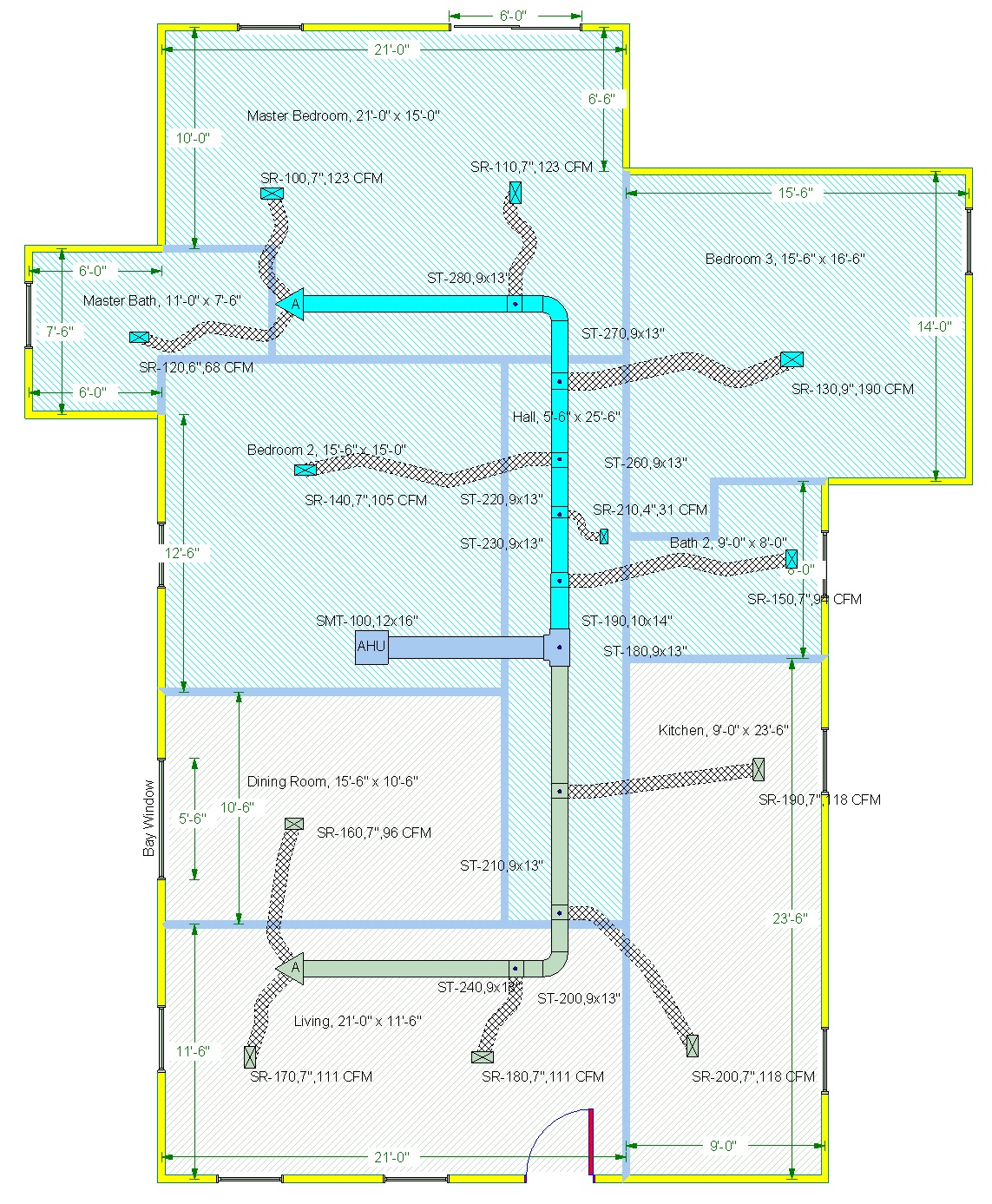
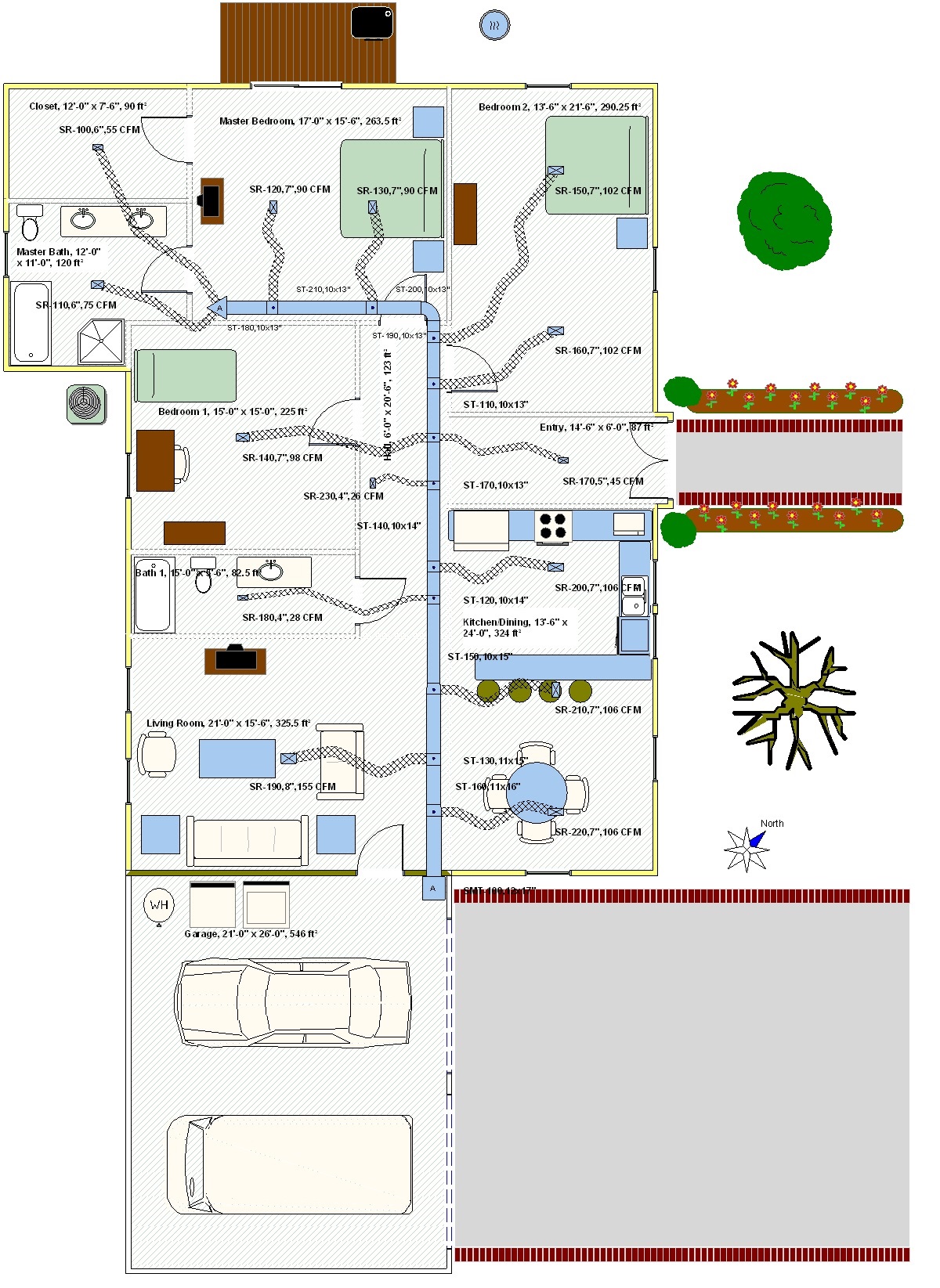
- Realistic Ductwork: Drawing Board shows ductwork completely realistic with bends, curves, and fittings just the way you install it. Duct board and sheet metal shows as solid grey or any color you like. Flex duct even looks like flex duct. Each duct section is shown on the drawing with its size and CFM, perfect for giving to the installer. Return duct sections appear just as nice and can be given a different color from the supply duct. Realistic Duct Fittings: Drawing Board can show double line duct fittings with appropriate curves and/or turning vanes. The fittings can be given any color desired and can even be colored coded by zone. Special symbols are provided for AHU's, triangle and quad boxes, transfer grilles and jump ducts. These fittings accurately depict what will actually be installed, and make for specification quality drawings.
- Register/Diffuser Options: Drawing Board offers both round, oval, and rectangular registers that can be specified to any size, shape, and color you like. Flow arrows can also be specified to indicate one way, two way, three way, and four way operation.
- Full Precision: Drawing Board allows very precise control of line lengths and areas. No need to worry about rounding errors and unwanted shifting of objects due to lack of precision. You can set the grid and “snap to” setting to any precision desired.
- Undo: If you make a mistake while drawing, click Undo to backtrack your changes. The Undo dialog shows you a preview that helps you to choose precisely how many of your changes to undo. You can undo a single change or go as far back in the current drawing session as you like.
- Dimensions: Drawing Board provides accurate, easy to place dimension lines for all aspects of the drawing. All types of English and metric units are provided.
- Export to CAD : You can export your Drawing Board drawing as a WMF file, and can then import that file into AutoCAD or another CAD program..
- Room Shapes: Drawing Board allows rooms with any number of walls and odd angles desired. The basic rectangular room shape can be modified as desired or select from eleven standard room shapes to save even more time.
- Individual Walls: All walls drawn with Drawing Board are individually selectable. Each wall can have its own material type, R value, orientation, and other properties related to HVAC load calculations. This also makes it very easy to define a partition wall separate from an exterior wall.
- Door Options: Doors can be drawn with any degree of opening and swing arc desired. Hinge side and swing direction are easily selectable and changeable.
- Floors and Layers: Drawing Board allows multiple story floor plans by using the concept of a sheet to represent each floor and layers to contain different types of objects per floor.
- Rooms, Zones and Systems Colors: Rooms can be assigned to zones and zones can be assigned to air handler systems that make up the building. Drawing Board allows room and zone areas to have different background colors so that it is easy to distinguish them.
- Zoom and Pan: Drawing Board provides numerous dynamic zooming and panning tools.
- Scaling: Drawing Board allows setting the size of the drawing page and includes all the standard architectural sheet sizes and scales, thus providing an accurate “WYSIWYG” picture of what the drawing will look like while you are still working in the editing mode.
- Printer Options: Drawing Board can print a floor plan on regular 8.5 x 11 paper or any size paper your printer or plotter will allow.
- Large Drawings: Drawing Board can also print a large drawing over multiple sheets of paper when the drawing is larger than the printer's standard paper size.
- Appearance Control: Drawing Board gives custom control over the appearance of all drawing objects and layers. You can change settings like the line type, color, and shadow if desired. All text can be specified with any font style and point size desired.
- North Arrow: Drawing Board provides an intelligent “north arrow” object that can be set to any direction desired and which controls the orientation assigned to all walls and windows.
- Borders, Title Blocks and Notes: Drawing Board makes it easy to create custom borders, title blocks, revision clouds, and callout notes.
- Standard Shapes: Drawing Board offers lots of standard drawing shapes including polygons, polylines, lines, rectangles, ellipses, arcs, text, rounded rectangles, and pie and chord objects. Use these to outline patios, flowerbeds, sidewalks and even create objects for custom object catalogs.
- Customizable Toolbars: Drawing Board uses five toolbars which can be fully customized and located wherever desired.
- Calculation Links: Drawing Board works with Elite’s Chvac, Rhvac and Ductsize programs and soon it will link with Fire and other Elite programs as well.
- Object Catalogs: Drawing Board has a collection of drawing objects to supplement projects. Objects include heating equipment (boilers, radiators, hydronic floor tubing, panels, etc.), appliances (washers, dryers, refrigerators, etc.), furniture (sofas, chairs, tables, etc.), plumbing fixtures (sinks, bathtubs, showers, etc.), electrical (outlets, switches, lights, etc.), landscaping (trees, shrubs, flowers, etc.) and many more objects.
- Bill of Materials: Ductwork items drawn in Drawing Board can be recognized by the optional Bill of Materials software. This feature allows a bill of materials report to be created complete with material and labor costs. Click here to see more details on the Bill of Materials software.



 Chvac
Chvac Rhvac
Rhvac Ductsize
 Graphic Manual D Ductsize
 Bill of Materials